
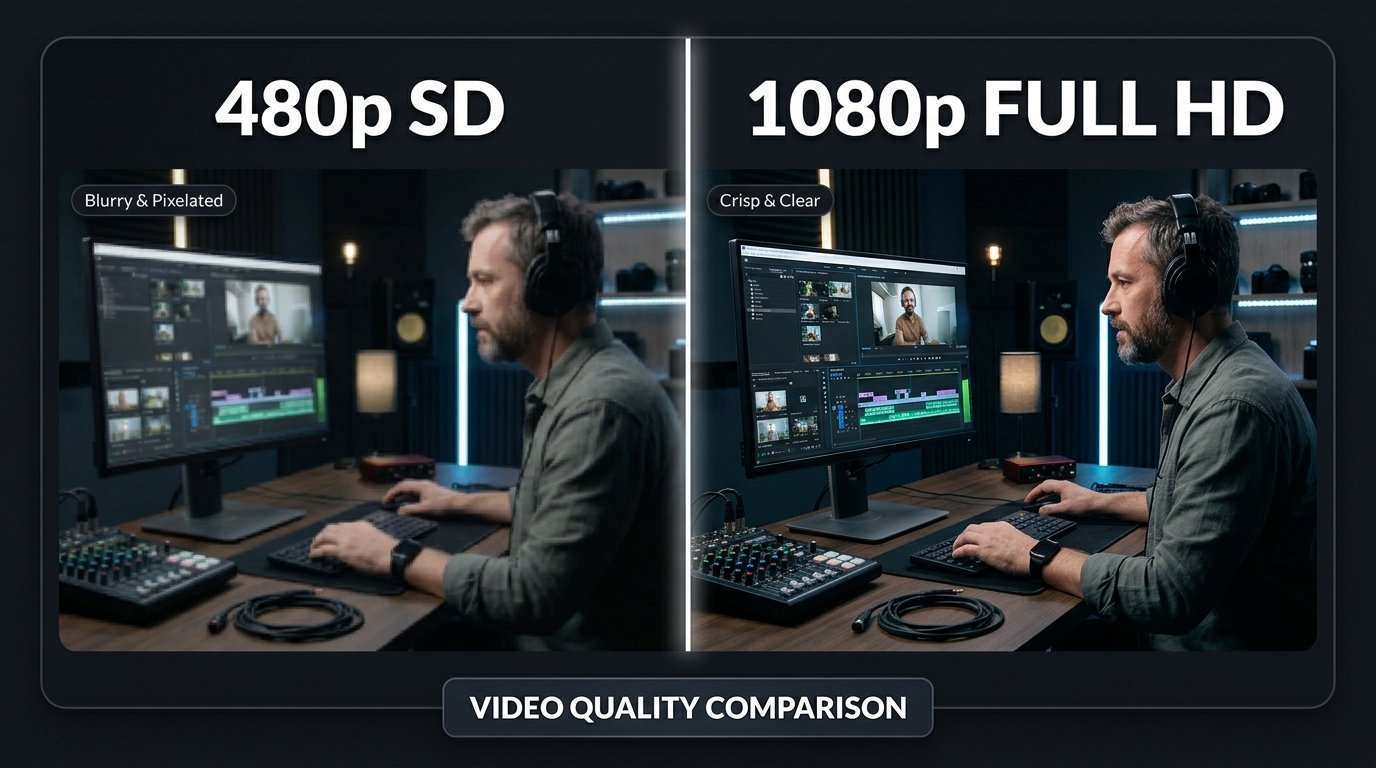
Few things are more frustrating for a video editor or creator than spending an hour perfecting a high-contrast thumbnail in Photoshop or Canva, uploading it to YouTube Studio, and watching it turn into a blurry, muddy mess on your channel page.
Why does this happen? The problem is rarely your design skill—it is almost always a mismatch with YouTube's server-side image recompression pipeline.
Here are the 5 root causes of blurry YouTube thumbnails and the exact steps to fix each one.
1. The "Missing MaxRes" Trap (The #1 Culprit)
When you upload a video, YouTube's CDN attempts to generate multiple resolution tiers:
maxresdefault.jpg→ 1280 × 720 pixels (High Definition)sddefault.jpg→ 640 × 480 pixels (Standard Definition)hqdefault.jpg→ 480 × 360 pixels (High Quality fallback)
The Trap: If your video itself was uploaded in standard definition (below 720p), or if your
custom thumbnail was rejected during processing, YouTube will never generate
maxresdefault.jpg.
Instead, YouTube falls back to serving hqdefault.jpg (a tiny 480×360 image). When a viewer on
a 1080p monitor or a 4K smartphone loads your video, the browser is forced to stretch that 480px thumbnail
across a 1200px container, resulting in obvious blur, soft edges, and pixelation.
Paste your video URL into YTSnapIt. If the "Maximum Resolution (1280×720 HD)" card is missing and only 480×360 shows up, YouTube did not generate an HD cover. You must re-upload a clean 1280×720 file in YouTube Studio.
2. Heavy PNG Files Triggering Harsh WebP Compression
Many creators assume exporting as a lossless PNG produces the highest quality. While true in theory, here is what happens when you upload a 1.9 MB PNG to YouTube:
To save exabytes of global bandwidth, YouTube immediately recompresses every uploaded thumbnail into WebP and AVIF image formats using automated lossy algorithms. When YouTube's compression robot encounters a heavy PNG close to the 2 MB limit, it applies heavier compression quantization to shrink the file down to ~80 KB.
The Solution: Do not upload heavy PNGs for photographic or complex imagery. Instead, export directly from Photoshop or Canva as a high-quality JPEG (85% to 90% quality). A clean 500 KB to 900 KB JPEG uploaded to YouTube experiences significantly less compression degradation than an oversized 1.9 MB PNG.
3. Designing on a 640×360 Canvas
Some older design tutorials state that 640×360 is the minimum YouTube resolution. While YouTube technically accepts this size, 640 pixels of width is far too small for modern retina screens, iPhone OLED displays, and smart TVs.
Always set your digital canvas to 1280 × 720 pixels (or 1920 × 1080 pixels). Designing at 1080p gives YouTube four times more source pixel data to sample when generating smaller mobile previews.
4. The Color Profile Mismatch (Washed Out & Flat)
Sometimes a thumbnail doesn't look blurry in terms of resolution, but looks flat, lifeless, or muddy—making text harder to read.
This happens when your graphics software exports in Display P3 (common on MacBooks and iPads) or CMYK (print mode). Web browsers and YouTube's media pipeline assume standard sRGB.
- In Photoshop: Go to
Edit → Color Settingsand set RGB to sRGB IEC61966-2.1. - When saving: Always check "Embed Color Profile: sRGB".
5. The Secret Sharpening Pass (Pro Video Editor Trick)
When YouTube scales your 1280×720 image down to 320×180 on mobile, interpolation algorithms naturally soften sharp edges. Top design agencies counter this with a subtle unsharp mask before uploading:
The 3-Step Photoshop Sharpening Recipe
- Press
Ctrl + Alt + Shift + E(orCmd + Option + Shift + Eon Mac) to stamp all layers into a new merged top layer. - Go to
Filter → Sharpen → Smart Sharpen...(or Unsharp Mask). - Set Amount: 40% – 60% and Radius: 0.8 to 1.2 pixels, with Reduce Noise at 10%.
This micro-contrast pass enhances the high-frequency edges around cutouts and typography, so when YouTube compresses the image, text remains readable at any zoom level.
Quick Summary Checklist to Prevent Blur
| Setting | Recommended Value | Why |
|---|---|---|
| Dimensions | 1280 × 720 (or 1920 × 1080) | Guarantees YouTube generates maxresdefault.jpg |
| File Format | JPEG (85% to 90% quality) | Avoids excessive WebP compression penalty |
| File Weight | Under 1.5 MB | Safely below the 2 MB hard cutoff |
| Color Space | sRGB IEC61966-2.1 | Prevents washed-out colors across browsers |
| Red Channel Caution | Use Orange-Red or White outline | Stops 4:2:0 chroma compression color bleed |
| Display Density Target | 2x Device Pixel Ratio | Maintains sharpness on 4K TVs and OLED phones |
6. The 4K Smart TV & Retina Display Test
In 2026, over 40% of all YouTube watch time in the United States and Europe occurs on Living Room Smart TVs (Apple TV, Samsung Tizen, LG webOS, Roku). Unlike small smartphone screens where a modest 480p preview might look passably sharp, 4K and 8K television screens blow up your thumbnail to a massive 1920×1080 canvas.
If your video defaulted to an sddefault.jpg (640×480), modern 4K upscaling algorithms will stretch those pixels across 8 million television subpixels, creating glaring pixelation, muddy facial features, and illegible text outlines.
Always inspect your thumbnail artwork on high-DPI displays before publishing. If you zoom into your master graphic to 200% on a desktop display and notice fuzzy artifacts around your lettering, your viewers will see double the blur on living room screens.
7. The Red Color Bleed Phenomenon (Chroma Subsampling)
Have you ever noticed that bright neon red text or red brand logos look unusually mushy and jagged on YouTube, even when the rest of your image looks sharp?
This is caused by 4:2:0 Chroma Subsampling, an industry-standard video and image compression technique used by Google and web browsers to save bandwidth. Human eyes are significantly more sensitive to luminance (brightness) than chrominance (color fidelity). Consequently, compression codecs discard half the color data horizontally and vertically.
Because pure red (#FF0000) sits on the extreme edge of the sRGB color spectrum, chroma subsampling causes the red boundary pixels to bleed violently into dark backgrounds.
The Fix: When using red text or graphics, never use pure raw red against black. Instead, add a subtle 2-pixel white, light yellow, or light gray stroke around the red lettering. The high-luminance stroke forces the compression algorithm to preserve the edge boundary, rendering your red text crisp on all screens.
Inspect Your YouTube Video Cover in Real Time
Use YTSnapIt to check whether YouTube successfully generated your 1280×720 maxres cover or if your video is stuck on a blurry 480×360 fallback.
Check Thumbnail with YTSnapIt