
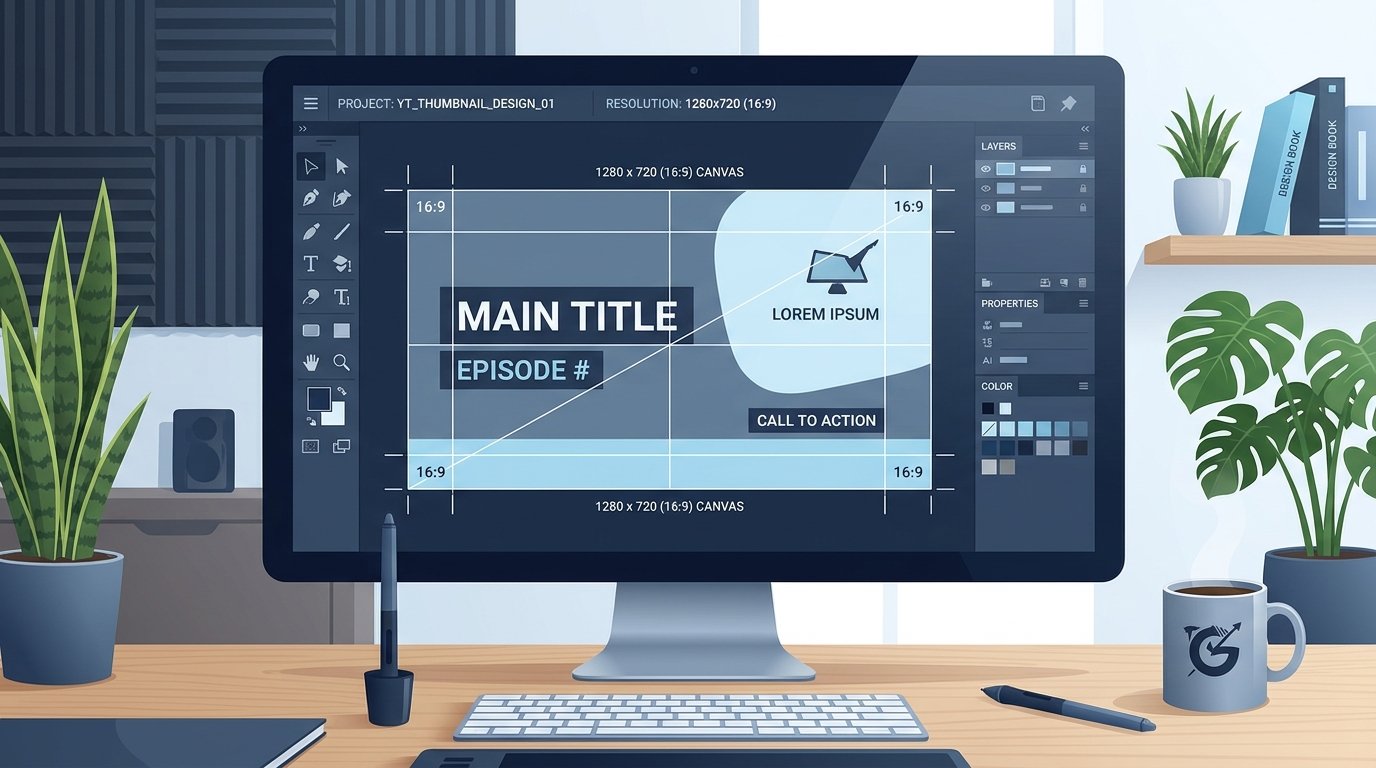
If your video has an average Click-Through Rate (CTR) of 2% and you boost it to 5%, you more than double your views without changing a single second of your footage. Yet countless creators spend 20 hours filming and editing a masterpiece, only to toss together a thumbnail in 5 minutes with the wrong canvas dimensions, washed-out color profiles, or text covered by YouTube's duration badge.
Here is the definitive, field-tested technical breakdown of YouTube thumbnail specifications and design rules used by top production studios and solo creators in 2026.
1. The Official YouTube Thumbnail Dimensions
YouTube's official recommendation has remained consistent, but how platforms render images across devices has evolved dramatically:
| Parameter | YouTube Specification | Creator Best Practice |
|---|---|---|
| Ideal Resolution | 1280 × 720 pixels | 1280 × 720 (or 1920 × 1080 if under 2 MB) |
| Minimum Width | 640 pixels | Never export below 1280 px |
| Aspect Ratio | 16:9 Landscape | Exact 16:9 (avoid 4:3 or letterboxing) |
| Max File Size | 2 MB (Standard videos) | Target 500 KB – 1.5 MB for instant load |
| Podcast Cover Max | 10 MB (Audio / Podcast shows) | Square 1:1 format (1400×1400 minimum) |
| Supported Formats | JPG, PNG, GIF, WebP | High-quality JPG (85–90%) or optimized PNG |
| Color Space | sRGB standard | Must convert from Display P3 or CMYK |
2. Why 1280×720 is the Sweet Spot (Not 4K)
Designers often ask: "Why not make my canvas 3840×2160 (4K) to get the best sharpness?"
Here is what actually happens behind the scenes on YouTube's ingest servers:
- The 2 MB Hard Limit: A complex, uncompressed 4K PNG file often weighs between 4 MB and 8 MB. YouTube's upload pipeline will reject it instantly with a generic upload failure message.
-
Aggressive Downsampling: Even if you compress a 4K image down under 2 MB, YouTube's image processing engine (libvips / WebP transcoder) will automatically downscale it to generate standard
maxresdefault.jpg(1280×720) andhqdefault.jpg(480×360). Automated downscaling can introduce unexpected haloing artifacts or micro-blur along high-contrast text edges. - The Verdict: Designing directly on a 1280×720 canvas (or 1920×1080 for crisp retina displays) guarantees that you control the rasterization of your typography and facial sharpening down to the exact pixel.
3. The 3 Dangerous "Dead Zones" to Avoid
A great thumbnail on desktop can become completely unreadable when YouTube overlays its native interface badges. Keep these zones clear:
Danger Zone 1: Bottom-Right Corner (Duration Badge)
YouTube overlays a semi-transparent black pill showing the video duration (e.g. 18:42) in the lower-right corner across desktop, mobile feeds, and TV apps.
Rule: Never place your main text, subtle punchlines, brand logos, or emotional facial expressions in the bottom-right quadrant (approximately 25% width and 20% height from the bottom-right border).
Danger Zone 2: Top-Right Corner ("Watch Later" & Queue Buttons)
On desktop hover, YouTube displays two floating buttons in the top-right corner: "Add to queue" and "Watch later". While this only triggers on hover, critical branding or episode numbers placed flush against the top-right border can look cluttered.
Danger Zone 3: Bottom Edge (Red Progress Bar)
When a returning viewer has partially watched your video, YouTube draws a bright red horizontal progress bar across the entire bottom edge. Any text positioned right against the bottom edge will clash visually with this bar.
4. The "10% Scale Test" for Mobile Phones
Over 70% of YouTube impressions occur on mobile devices. In the YouTube mobile feed, a 1280×720 image is rendered on physical screens at roughly 320 × 180 pixels (or as small as 120 × 90 pixels in sidebar suggested video carousels).
Before you hit export in Photoshop or Figma:
- Zoom out your canvas to 10% to 12% scale.
- Lean back 2 feet from your monitor and squint.
- Ask yourself: Can you immediately tell who is in the photo? Can you read the 3-word hook without straining? Is the emotional expression clear?
If fine text disappears or colors blur together into visual noise at 10% zoom, delete 50% of the clutter. High CTR thumbnails focus on one clear subject, high color contrast, and 2 to 4 bold words max.
5. Color Space Secret: Always Convert to sRGB
Have you ever exported a vibrant, rich thumbnail from Photoshop on a Mac, only to see it look faded, pale, and washed out once published to YouTube?
This happens because modern Apple displays and professional cameras record in Display P3 or Adobe RGB (1998). YouTube's CDN does not reliably preserve embedded ICC color profiles—it strips metadata to save bandwidth and assumes every image is standard sRGB.
Go to Edit → Convert to Profile... → select sRGB IEC61966-2.1 as the Destination Space. When using File → Export → Export As..., make sure "Convert to sRGB" and "Embed Color Profile" are both checked.
6. Export Checklist (Photoshop, Canva & Figma)
- Format: JPEG with 85% to 90% quality setting (strikes the perfect balance between zero compression banding and a lightweight 600 KB file).
- PNG Exception: Use 24-bit PNG only if your design contains sharp vector typography or flat graphic illustrations with solid color blocks. If the PNG exceeds 2 MB, switch to 90% JPEG.
- Resolution: 1280 × 720 px (or 1920 × 1080 px).
- DPI / PPI: Set to 72 PPI (DPI has zero effect on web screens; pixel dimensions are what count).
Verify Your Published YouTube Thumbnail
Want to see the exact resolution YouTube generated for your video or inspect a competitor's full 1280×720 cover artwork?
Inspect Thumbnail with YTSnapIt